
Already using JDownloader 2 with Nitroflare and running into trouble? This page covers account errors, speed issues, and advanced queue settings. New to JDownloader entirely? Start with our Quick Start Guide for basic setup — then come back here when something breaks.
Want to see how fast a properly configured queue actually runs? → Read the Full Speed Test Review
Setup Recap (30-Second Version)
If you haven’t added your account yet:
- Open JDownloader 2 → Settings → Account Manager
- Click Add Account, search for
nitroflare.com - Enter your Nitroflare email and password
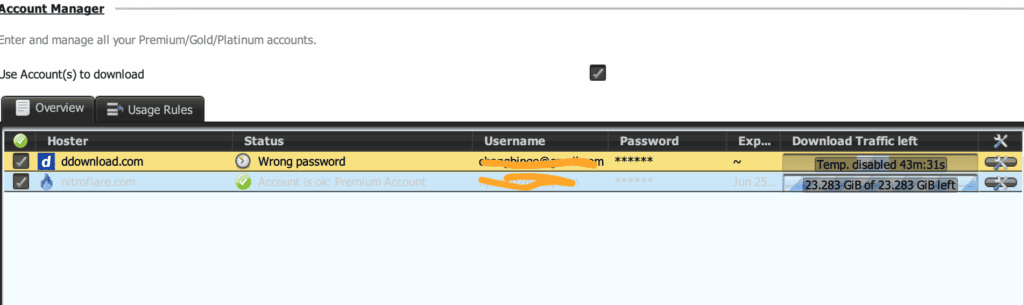
- Confirm the status shows “Account is ok: Premium Account”
Full step-by-step walkthrough with screenshots: Quick Start Guide →
Adding and Managing Links
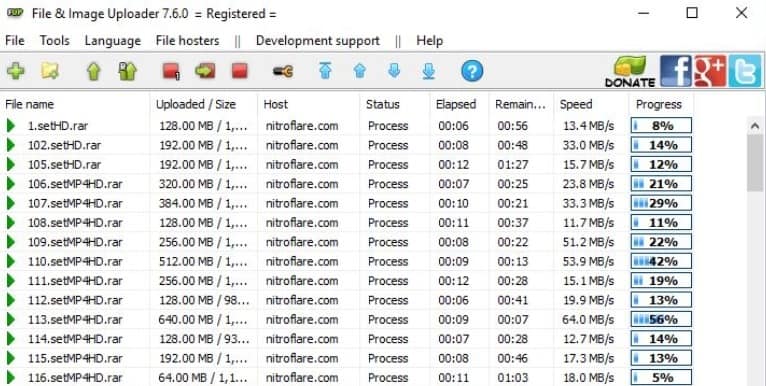
Copy your Nitroflare URLs to your clipboard — JDownloader automatically detects them and places supported files into the LinkGrabber tab.
Before starting the queue:
- Review filenames and sizes in LinkGrabber
- Remove duplicate links or files you don’t need
- Keep multi-part archives grouped in the same package — this makes it easy to spot a missing part before extraction fails
Troubleshooting: Account Errors
“Premium Account Not Recognized”
This is the most common issue after a Nitroflare plugin update breaks compatibility with an older JDownloader version.
- Confirm the account still logs in normally through a browser — this isolates whether the problem is JDownloader or Nitroflare itself
- Update JDownloader to the latest version and restart it
- Remove the saved Nitroflare account from Account Manager
- Restart JDownloader again, then re-add the login from scratch
- Type the email and password manually rather than pasting — password managers occasionally include a trailing space that breaks authentication silently
“Wrong Password” Message
- Test the exact same login directly on Nitroflare’s website first
- If the browser also rejects it, reset your password — the account itself is the issue, not JDownloader
- If the browser works fine but JDownloader still fails, remove the saved account and re-add it after confirming you’re on the latest JDownloader version
- Double-check you’re not accidentally entering credentials for a different file-host account — this happens more often than you’d expect if you manage several hosts in one password manager
Account Temporarily Disabled
JDownloader can automatically disable an account after repeated login or download failures. The error message usually includes a retry countdown.
- Don’t repeatedly refresh or retry — this can extend the lockout
- Wait out the full cooldown period before checking again
- Restarting JDownloader after the wait may help, but it won’t fix an expired account or an exhausted traffic balance — those require action on the Nitroflare side, not the app
Troubleshooting: Speed Issues
When downloads run slower than expected, work through these in order:
- Isolate the problem. Test one file directly in Chrome. If it’s also slow there, the issue is likely the server or your connection — not JDownloader.
- Reduce active tasks. Several unstable simultaneous downloads can sometimes perform worse combined than two stable ones. Drop to 2 tasks and compare.
- Disable any VPN temporarily. VPN routes are often longer or more congested than your direct connection — test without one.
- Try a different file. One slow server doesn’t necessarily mean the whole service is underperforming.
Curious what “normal” speed looks like on a healthy connection? Our full review breaks down real test results across single-file, multi-file, and JDownloader configurations.
Troubleshooting: Traffic Exhaustion
A Premium login can remain active even when its download traffic is low or fully used — this confuses a lot of users who assume “account is ok” means unlimited capacity.
- Check the traffic column in Account Manager before launching a large queue
- Compare the remaining balance against the total size of every file in the queue, not just the one you’re currently looking at — multi-part archives add up fast
- JDownloader cannot generate extra traffic. If you’ve hit the limit, you’ll need to wait for the plan’s refresh cycle or review current account options
Advanced Configuration
Adjusting Simultaneous Download Limits
By default, JDownloader may not cap simultaneous downloads the way you’d expect. To manually control this:
- Go to Settings → Advanced Settings
- Search for
simultaneousdownloads(or similar, depending on version) - Set a limit between 2–4 to start
- Increase gradually only if speeds remain stable and your traffic balance allows it
Running 10–20 active files rarely improves total throughput — it tends to destabilize the queue and burns through traffic faster than a smaller, controlled batch.
Setting Download Folders Per Package
For users managing multiple archives at once, assign a distinct download folder per package in LinkGrabber before starting. This avoids mixing parts from different archives in one directory — a common cause of failed extractions.
Extraction Settings for Multi-Part RAR Archives
JDownloader can auto-extract RAR archives once all parts finish downloading:
- Go to Settings → Extraction
- Enable Auto Extract
- Optionally enable Delete archive files after extraction to save disk space
- Confirm extraction only triggers once all parts of a package are complete — this prevents partial, corrupted extraction attempts
Scheduling Unattended Queues
For overnight or long-running downloads:
- Use JDownloader’s Event Scripter or built-in scheduler to start/stop downloads at set times
- Pair this with a stable wired connection rather than Wi-Fi where possible — switching networks mid-queue is one of the most common causes of login and connection errors
General Reliability Tips
Keep enough free disk space. Multi-part archives are often much larger once combined than they appear from a single link. Check the total package size before starting, and leave extra room for extraction.
Use a stable network. Avoid switching between Wi-Fi, mobile data, and VPN servers while a queue is active — this is a frequent, often-overlooked cause of login failures and dropped connections.
Quick Answers
Does Nitroflare Premium work with JDownloader 2?
Yes, when both the account and application are correctly configured. See the setup recap above or the full Quick Start Guide.
JDownloader says my Premium account is missing — what now?
Update JDownloader, remove the saved account, restart the app, and re-add the login manually. See the full fix above.
Will JDownloader bypass Nitroflare’s free account limits?
No. JDownloader manages and organizes your downloads, but it cannot remove server-side restrictions. A valid Premium account is still required for Premium-tier access.
How many files should I run at once?
Start with 2, scale to 4 if stable. For details on how this affects real throughput, see our speed test results.
My account shows “ok” but downloads won’t start — why?
Check your remaining traffic balance first — an active account with exhausted traffic will still show as valid but won’t process new downloads.
Still stuck, or want to see what a fully optimized setup looks like in practice? → Read the Full Review for real speed benchmarks, or go back to the Quick Start Guide for basic setup from scratch.
Last updated: October 2026. Independent guide — JDownloader and Nitroflare are separate, unaffiliated services.