
New to Nitroflare? This page gets you downloading in minutes — whether you’re sticking with Free or setting up Premium with JDownloader 2. For detailed speed benchmarks, see our Full Review. For a side-by-side feature breakdown, see Free vs Premium.
The 10-second summary:
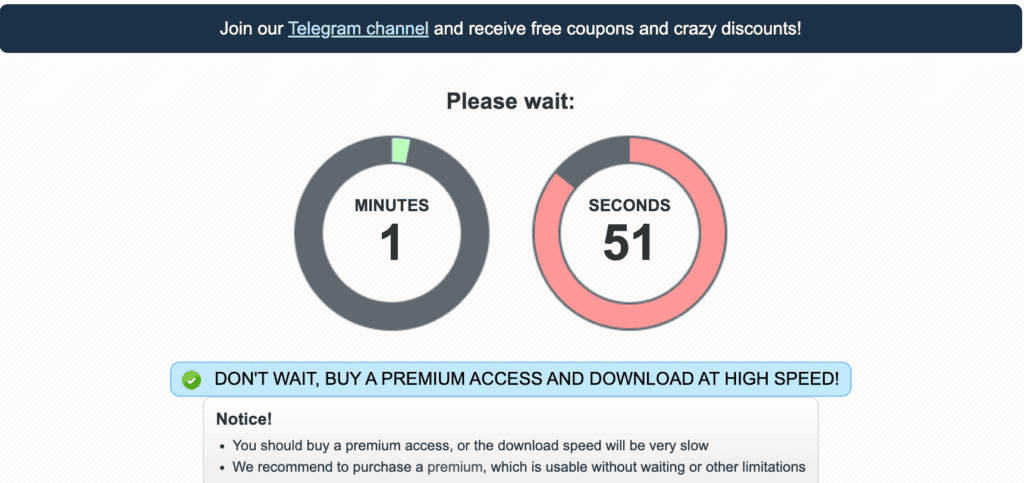
- Free = works, but adds a countdown page, one file at a time
- Premium = starts immediately, handles multiple files, built for JDownloader
- Full speed numbers → Read the Review
Option A: Downloading with the Free Tier (No Setup Needed)
- Click your Nitroflare link
- Wait through the countdown page (typically 1–3 minutes)
- Click the download button once it activates
- Repeat for each additional file
No software required. This works fine for a single file you’re not in a hurry for.
Option B: Setting Up Premium with Chrome
If you already have a Premium account, there’s nothing to install:
- Log into Nitroflare in your browser
- Click any download link — it starts immediately, no countdown
- Repeat for up to 3–4 links at once if your connection can handle it
Good for quick, one-off downloads. For anything larger than a handful of files, move to Option C.
Option C: Setting Up JDownloader 2 (Recommended for Queues)
This is the setup we recommend for multi-part archives or batch downloads.
- Download and install JDownloader 2 from the official site
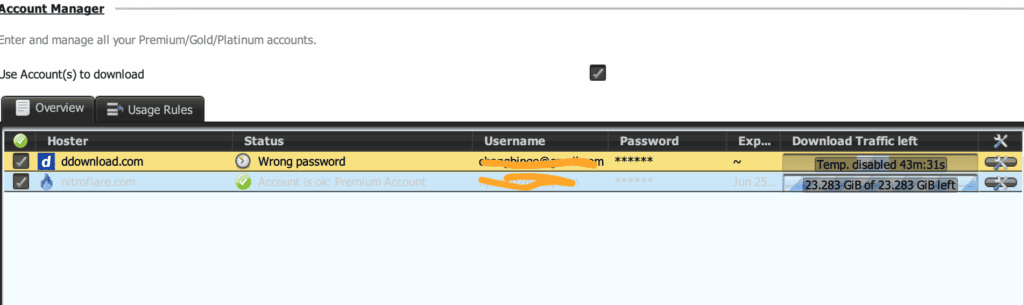
- Open Settings → Account Manager
- Add your Nitroflare login under “Hoster”
- Confirm the account shows as recognized
- Copy your Nitroflare links (Ctrl+C) — JDownloader auto-detects them from your clipboard
- Confirm the links appear in your Linkgrabber tab
- Click Start Downloads

Setup tips
- Start with 2–4 simultaneous downloads, not more — stability matters more than raw count
- Keep JDownloader updated for the best resume support
- Don’t switch networks mid-download if you can avoid it
Which Setup Is Right for You?
| Your situation | Recommended setup |
|---|---|
| One small file, no rush | Free tier, browser only |
| One large file, need it fast | Premium + Chrome |
| Multiple files or a full archive | Premium + JDownloader 2 |
| Overnight/unattended downloads | Premium + JDownloader 2 |
Want to know which account type actually fits your needs? → Free vs Premium Comparison
Curious how fast Premium really is in practice? → Read the Full Review
Quick Troubleshooting
JDownloader doesn’t recognize my account — Double-check your login under Account Manager; re-enter your password if the status shows an error.
Downloads are slower than expected — Try reducing simultaneous tasks to 2, then scale up gradually.
Free countdown won’t finish — Refresh the page; some countdowns reset if a browser extension blocks timers.
Last updated: October 2026. Independent guide — not affiliated with Nitroflare.